A slide is read under the worst conditions any text faces: from across a room, on a screen or projector that has lost half its contrast to the lights, by people who are also listening to someone talk. Type that looks refined on a laptop can be unreadable there. The good news is that the fixes are simple and mostly about weight and size.
What survives a projector
- Regular weight or heavier. Light and thin weights lose their strokes to glare and to the soft focus of a projector. Something that looks elegant on your screen will look faint on the wall.
- A large lowercase. Faces with big x-heights read bigger at the same point size, which buys you distance.
- Low contrast between thick and thin. High-contrast serifs are beautiful up close and lose their hairlines at a distance. Save them for the title slide, large.
How big is big enough
The old rule of thumb — no text on a slide smaller than 30 points — is a good one precisely because it is uncomfortable. It forces fewer words per slide, which is what makes a presentation readable in the first place. In practice: titles around 36 to 44 points, body text 24 to 32, and nothing under 18 except a source credit. If the text does not fit at those sizes, the slide has too much on it.
Families that work well on slides
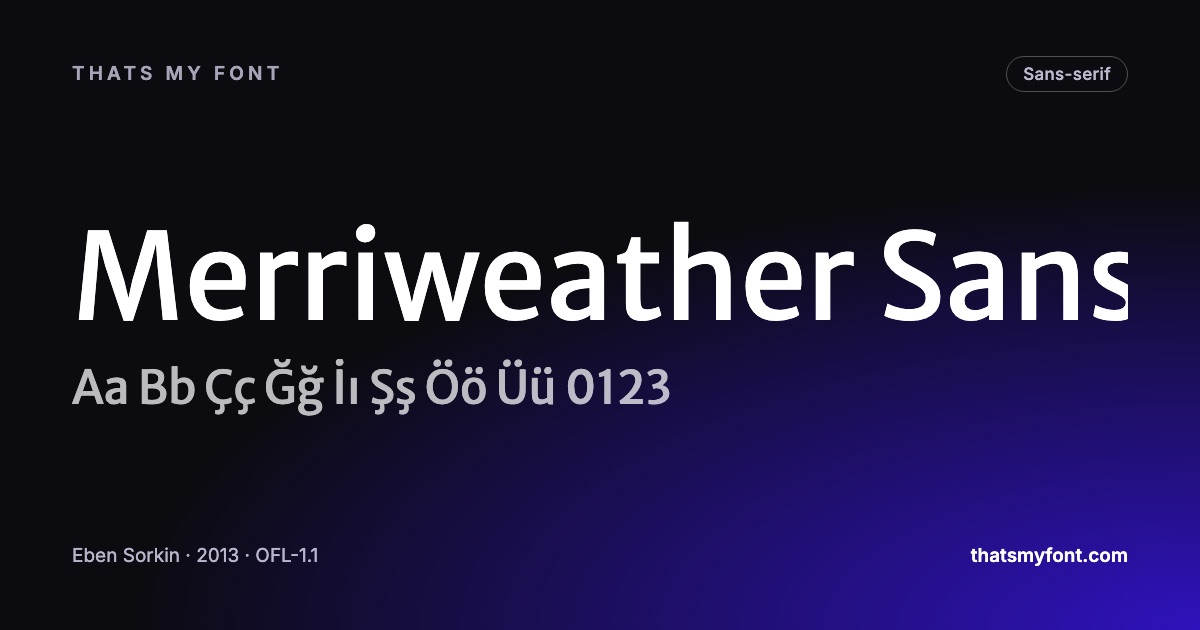
Merriweather Sans was drawn to stay open and sturdy on poor screens, which is exactly what a projector is. Inter and Ubuntu Sans are neutral and clear at every size. Mona Sans has a width axis that lets a long title go narrower without switching families. For a title slide with more character, DM Serif Display is striking at size, paired with any of the sans above for the rest.
Mona Sans — variable
Sphinx of black quartz, judge my vow
In the static download
Stopping your font from being swapped
The most common presentation disaster is not a bad font choice; it is a good font replaced by a default one because the computer running the slides does not have it installed. Each program deals with this differently.
- PowerPoint can embed fonts in the file — look for the embed option in its Save settings. Embed all characters if anyone else will edit the deck.
- Keynote does not embed fonts. If you present from another machine, export a PDF or make sure the font is installed there.
- Google Slides only offers the fonts in its own menu, and you cannot upload your own. Many of the families here are in that menu already, because they come from the same open library.
The full explanation of that last point is in what a variable font is, and installing a font in Word and PowerPoint walks through the installation itself.
| Family | Variable download | Static download |
|---|---|---|
| Merriweather Sans | 234 KB2 files | 701 KB12 files |
| Inter | 957 KB2 files | 9.1 MB54 files |
| Ubuntu Sans | 752 KB2 files | 5.1 MB48 files |
| Mona Sans | 426 KB2 files | 4.2 MB80 files |
| DM Serif Display | None published | 83 KB2 files |
Dark slides, light slides and the room
The background decides more about legibility than the typeface does, and it depends on a thing you cannot control from the design file: how much light is in the room. A dark slide in a dark room is elegant; the same slide in a meeting room with the blinds open is a grey rectangle with ghosts on it.
- Lit room, projector: dark text on a light background. Projected light plus daylight washes out a dark slide completely.
- Dark room, or a television screen: either works, and a dark background is easier on the eye for a long session.
- Unknown room: light background. It is the safer of the two, and it is what every conference template defaults to for that reason.
- Whichever you choose, keep the contrast well above the minimum. Projectors lose contrast; screens do not.
If the deck is dark, drop the weight slightly. Light type on a dark ground optically gains weight, and a bold heading that looked right on white can close up on black.
One family, two weights, three sizes
Most bad decks are not badly typeset; they are typeset four different ways. A deck needs a system as much as a product does, and a small one: one family, a regular and a bold, and three sizes — title, body, and a small line for sources and captions.
Hierarchy then comes from size and position rather than from a new typeface on every slide. If a slide genuinely needs contrast, take it from a second family chosen once for the whole deck — a serif title over a sans body, for instance — and keep it consistent. The method is in the font pairing guide.
Before you present from somebody else’s laptop
- Export a PDF as a backup. Fonts are embedded, nothing substitutes, and it opens on anything.
- If you must present from the original file, install the font on that machine first — every family here is free to install anywhere, with no licence to arrange.
- Check the first and last slide on the actual screen before the room fills. Thin weights and low contrast fail visibly, and both are fixable in a minute.
- Turn off any automatic "make it fit" shrinking. It silently sets one slide at 14pt and nobody in the third row can read it.
Charts, tables and the smallest text on the slide
The type on a chart is the first thing to fail in a room. Axis labels, legends and data callouts default to something around 10 to 12pt in every charting tool, which is unreadable past the third row of seats.
Raise them to at least 18pt, cut the number of labels rather than shrinking them, and use tabular figures so columns of numbers line up. If a table genuinely needs more rows than that allows, it is a handout rather than a slide — put the conclusion on the screen and the detail on paper.